How to connect DeskBot to your startup's numbers
In short
Setting up DeskBot takes two steps. First join it to Wi-Fi: scan the QR code on its screen with your phone and pick your network. Then give it one HTTPS address that returns your numbers as JSON, with a key, and tap Test connection. The format is fixed but every field is optional, and you can map each value to your own JSON instead of changing your server.
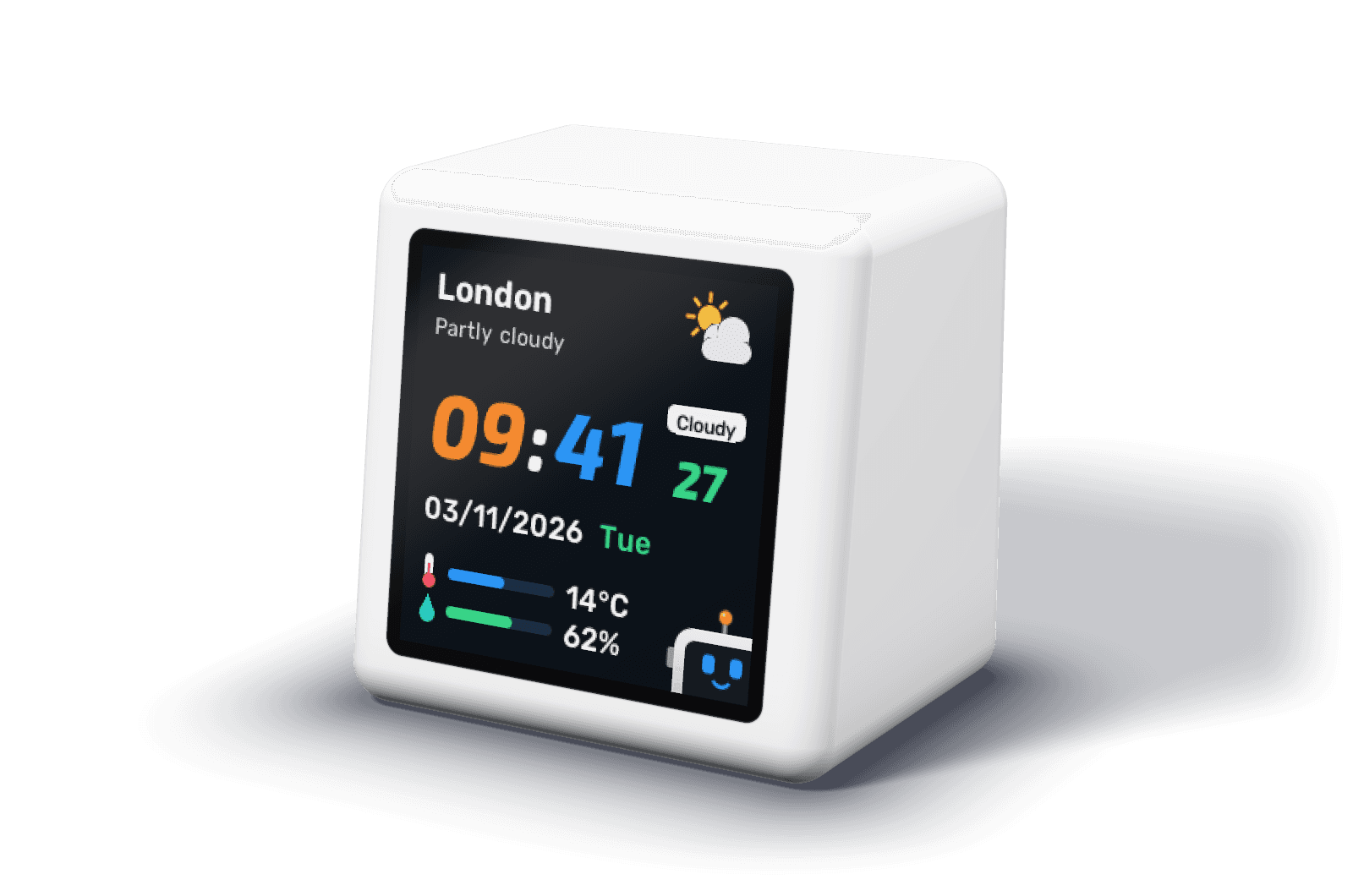
1. Join it to Wi-Fi
- Plug DeskBot into USB-C power. On first start it shows a QR code and opens its own network, called DeskBot.
- Scan the QR code with your phone's camera to join that network. A setup page opens.
- Pick your Wi-Fi network (2.4 GHz) and enter its password. DeskBot joins it, sets its time zone from your phone, and shows the clock.
- If it ever loses Wi-Fi for two minutes, the setup network opens again by itself.
2. Add your endpoint
- Open the settings page: scan the Settings QR screen as it rotates past, or go to http://deskbot.local on the same Wi-Fi.
- Under Business stats, enter your endpoint's address. With no path, DeskBot asks for /api/v1/stats; with a path, it uses the address exactly as entered.
- Add the key. DeskBot sends it as Authorization: Bearer followed by the key, stores it on the clock and never shows it again.
- Tap Test connection. DeskBot says how many fields it found, or names what went wrong.
What your endpoint should return
Reply to a GET request with status 200 and JSON, within 8 seconds. Every field is optional: a missing one keeps its last value, so you can start with one number. Money is in minor units (cents, pence) unless you choose whole units on the settings page.
{
  "people": {
    "total": 1284,
    "new": { "1d": 12, "7d": 57, "30d": 203 },
    "active": { "1d": 148, "7d": 512, "30d": 903 }
  },
  "breakdown": [42, 18, 25, 3],
  "revenue": {
    "mrr": [{ "currency": "USD", "amount": 120000 }],
    "change": { "30d": [{ "currency": "USD", "amount": 3500, "percent": 3.0 }] }
  },
  "positives": { "signUps": { "1d": 9 }, "newPayingThisMonth": 2 },
  "negatives": { "churnedThisMonth": 1, "pastDue": 2 }
}Using the JSON you already have
If your API already returns these numbers in another shape, open API format on the settings page and give the path to each value: data.users.count, or metrics.0.mrr for the first item of a list. The example reply on the page follows your paths as you type, and after a test the fields that were not found are marked.
| Your JSON | Path |
|---|---|
| {"data": {"users": {"count": 1284}}} | data.users.count |
| {"metrics": [{"mrr": 1200}]} | metrics.0.mrr |
| {"billing": {"mrr_usd": 1200}} | billing.mrr_usd, with whole units and currency USD |
Errors DeskBot names
| Message | What to do |
|---|---|
| Can't reach the API host | Check the address; the host must be reachable from DeskBot's Wi-Fi |
| Certificate not trusted by DeskBot | Use a certificate from a public authority such as Let's Encrypt |
| API key refused (HTTP 401) | Add or replace the key on the settings page |
| No stats at this address (HTTP 404) | Check the path; without one DeskBot asks for /api/v1/stats |
| Redirected: use the final URL | Enter the address the redirect points to |
| API took longer than 8 s | Cache the reply for a minute on your side |
| No known fields in the reply | Check the paths under API format |
Security
- Use a key that can do nothing but return these numbers.
- The key is only ever sent to the saved address. Changing the address removes it, so nobody on your network can redirect it.
- Anyone on the same Wi-Fi can open the settings page and change settings, but cannot read the key or the Wi-Fi password back.
- Firmware updates install only if they are signed with DeskBot's release key.
Frequently asked questions
Is there an example server?
Yes. The public API guide on GitHub has a working example server and a checker script that makes the same request DeskBot makes and reports what the clock would show. For Stripe, see the Stripe MRR page.
Can I use plain http?
Only for a server on the same network. Over the internet the key would cross unencrypted, so use https.
Does it follow redirects?
No. Enter the final address. If your host redirects http to https or adds www, use the https and www form directly.